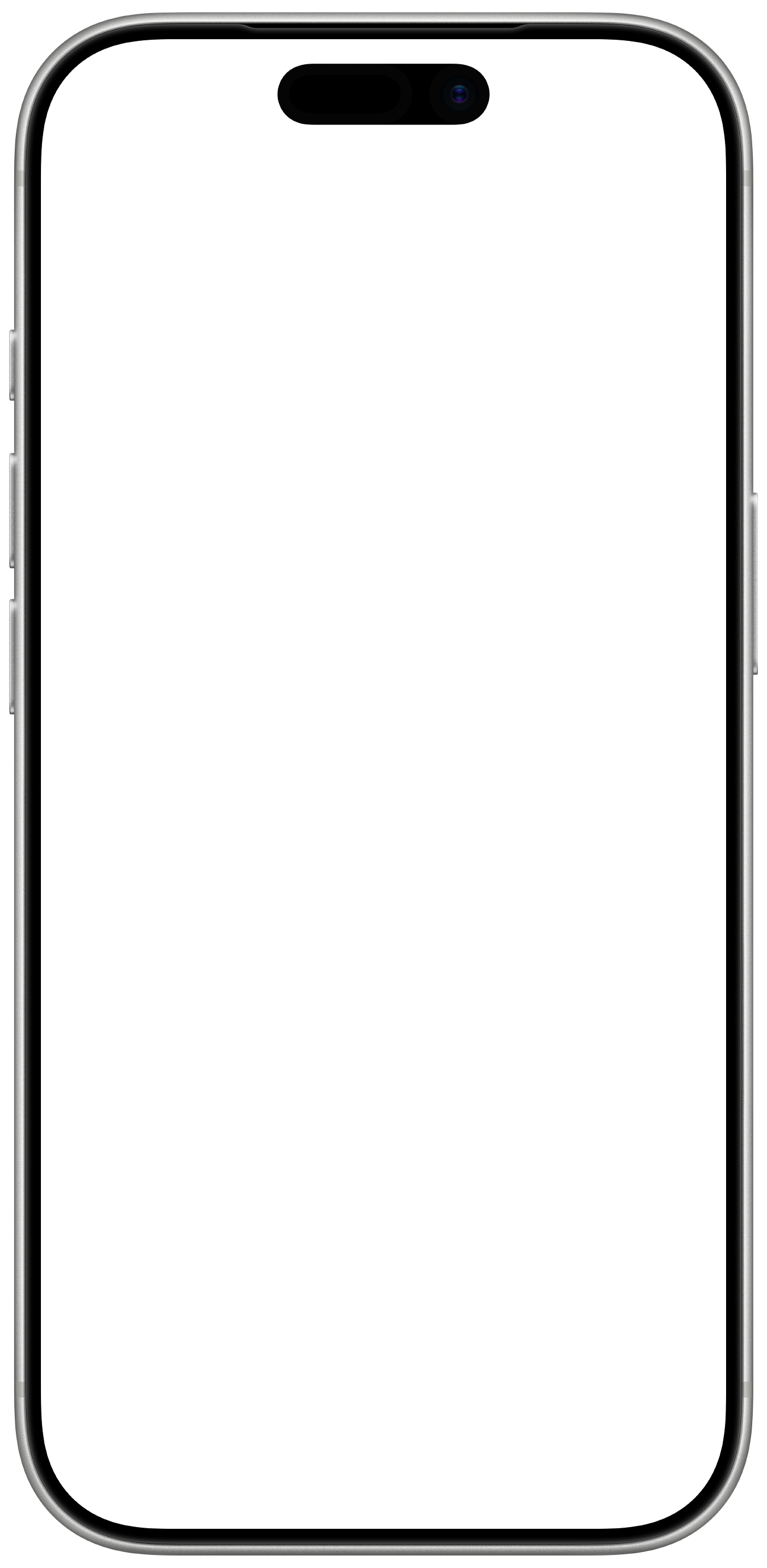
Original Apple
device frames.
01 / WEATHERdevice frames.
Device Hub made clean, device-framed screenshots harder to capture.
Sim Screener brings them back, along with framed recordings, at full resolution.
Sim Screener watches your capture folder.
New captures are matched to a device frame.
Select the folder where Device Hub saves screenshots and recordings. Sim Screener watches for new PNGs and MP4s.
Sim Screener matches the device and orientation. Choose a finish and keep your capture at its original resolution.
Framed screenshots appear in a corner preview. Copy, save, or drag them into another app. For recordings, choose an MP4 or MOV export.
Includes all 130 device frames, screenshot framing,
and recording exports.
All device frames and export formats included.
Secure checkout with Lemon SqueezyFinal price and any tax shown at checkout.
Copy the prompt, hand it to your coding agent, and make your own Mac app for Simulator captures. The core features, ready to build on.
Yours to copy and customize.
The move to Device Hub got in the way of a simple workflow: taking a clean screenshot of your app inside its device frame. That’s why Sim Screener exists. Keep capturing in Device Hub, and Sim Screener adds the matching Apple device frame to your screenshots and recordings, ready to share at their original resolution.
130 original Apple frames for iPhone and iPad, including iPhone Duo (inner and outer displays), the iPhone 18 Pro family, iPhone 17 family, iPhone Air, iPhone 16 family, iPad Pro, iPad Air, iPad mini, and iPad (A16). Every bundled finish includes portrait and landscape artwork. Captures must match a supported device’s native resolution.
Yes. Save an MP4 from your simulator and choose a framed MP4, transparent HEVC MOV, or ProRes 4444 MOV export. Original timing and mono or stereo audio are preserved. Transparent video requires a compatible player or editor.
Your screenshots, recordings, and frames are processed locally and never uploaded by Sim Screener. License activation and verification connect directly to Lemon Squeezy. Read our privacy details for more.
Download Sim Screener, open the installer, and drag the app into Applications. Enter the license key from your Lemon Squeezy receipt under Settings → About → Manage License, choose your capture folder, and you’re ready. See the setup guide for the details.